
QR Coupon
Campaigns
A campaign is a folder and a scoreboard in one. Group the codes behind a single promotion — a summer sale, a flyer drop, a newsletter push — and you can see how the whole effort performs instead of squinting at codes one by one. Pro
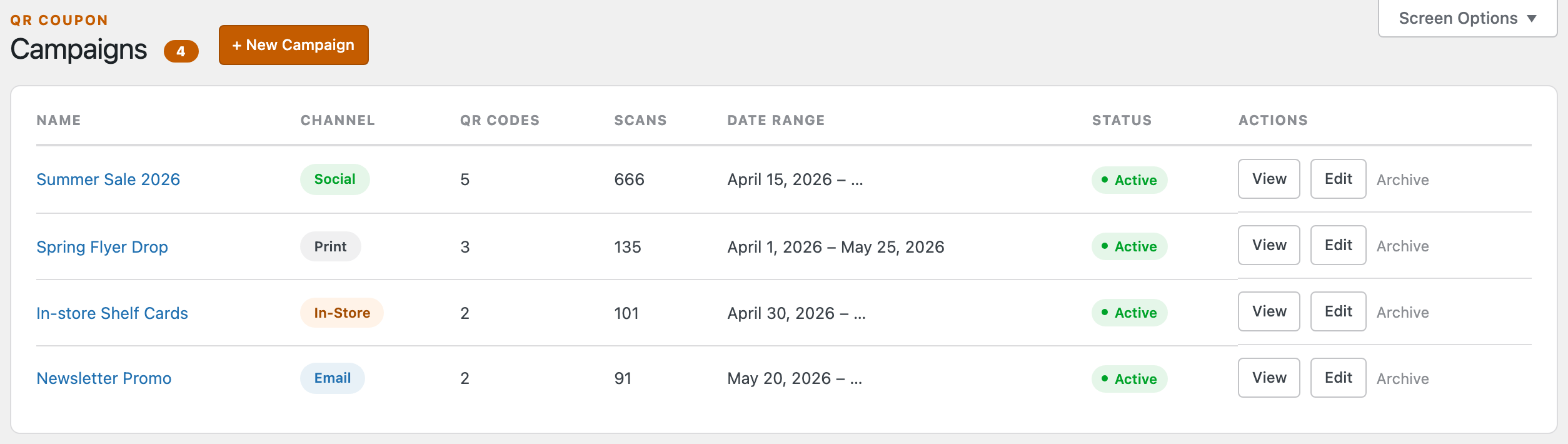
Create a campaign
Click + New Campaign, give it a name, pick a channel — social, print, in-store, email or digital — and, if you like, a start and end date. That’s the container ready; now you fill it with codes.
Two ways to add codes
A campaign can hold two kinds of code, and the Type column tells them apart:
- Product codes — generate a code on a product as usual, and pick the campaign from the Campaign dropdown in the metabox. The code still drops that product into the cart; it’s just filed under the campaign for tracking.
- Custom-URL codes — created from inside the campaign, pointing anywhere on your store.
That second kind is what makes campaigns more than a product feature. Open a campaign and click + Generate QR: instead of choosing a product, you type a URL path on your own store — a landing page, a category, a lookbook — onto the fixed site address.
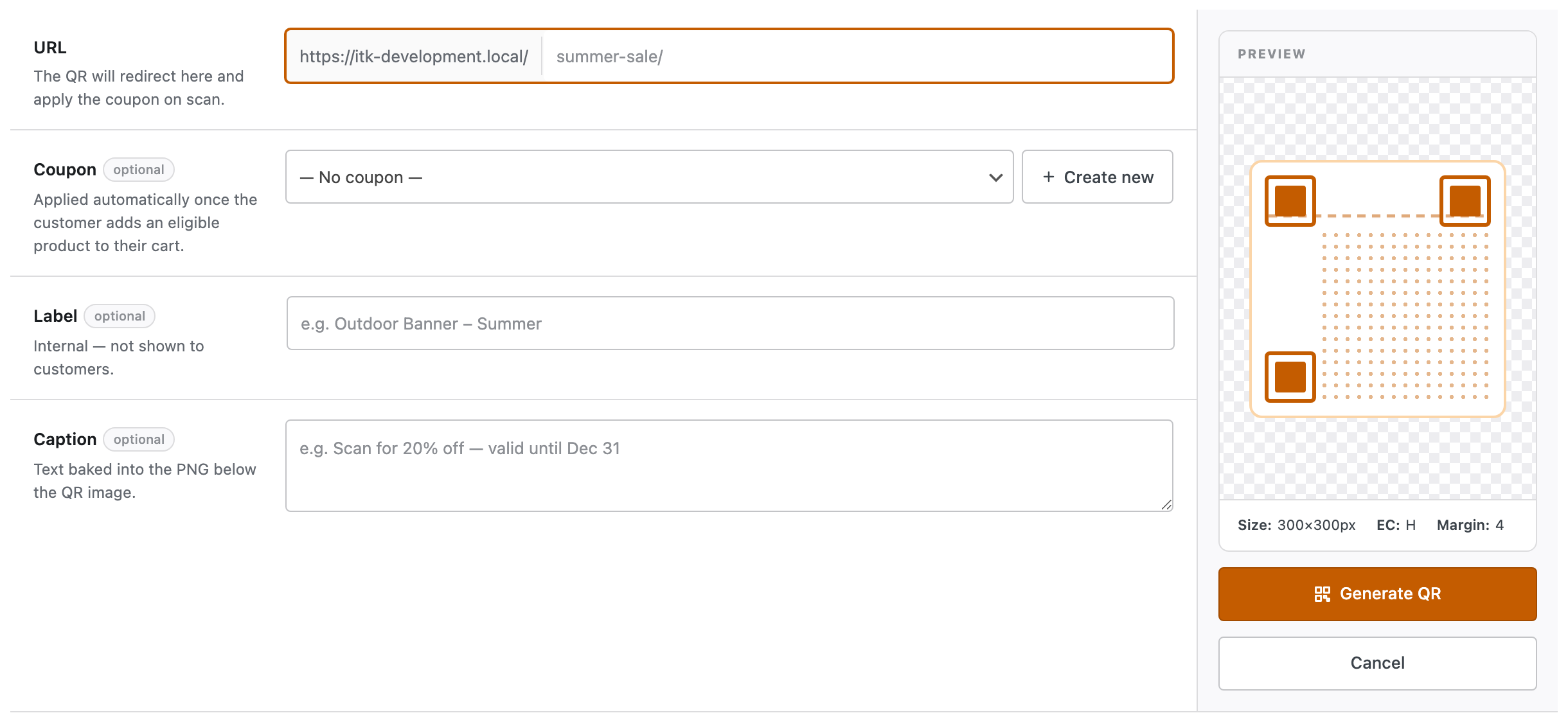
Attach a coupon if you want one: it’s armed on scan and applied automatically the moment the customer adds an eligible product to their cart. So a single code on an outdoor banner can send people to your sale page and have the discount waiting for whatever they buy.
Inside a campaign
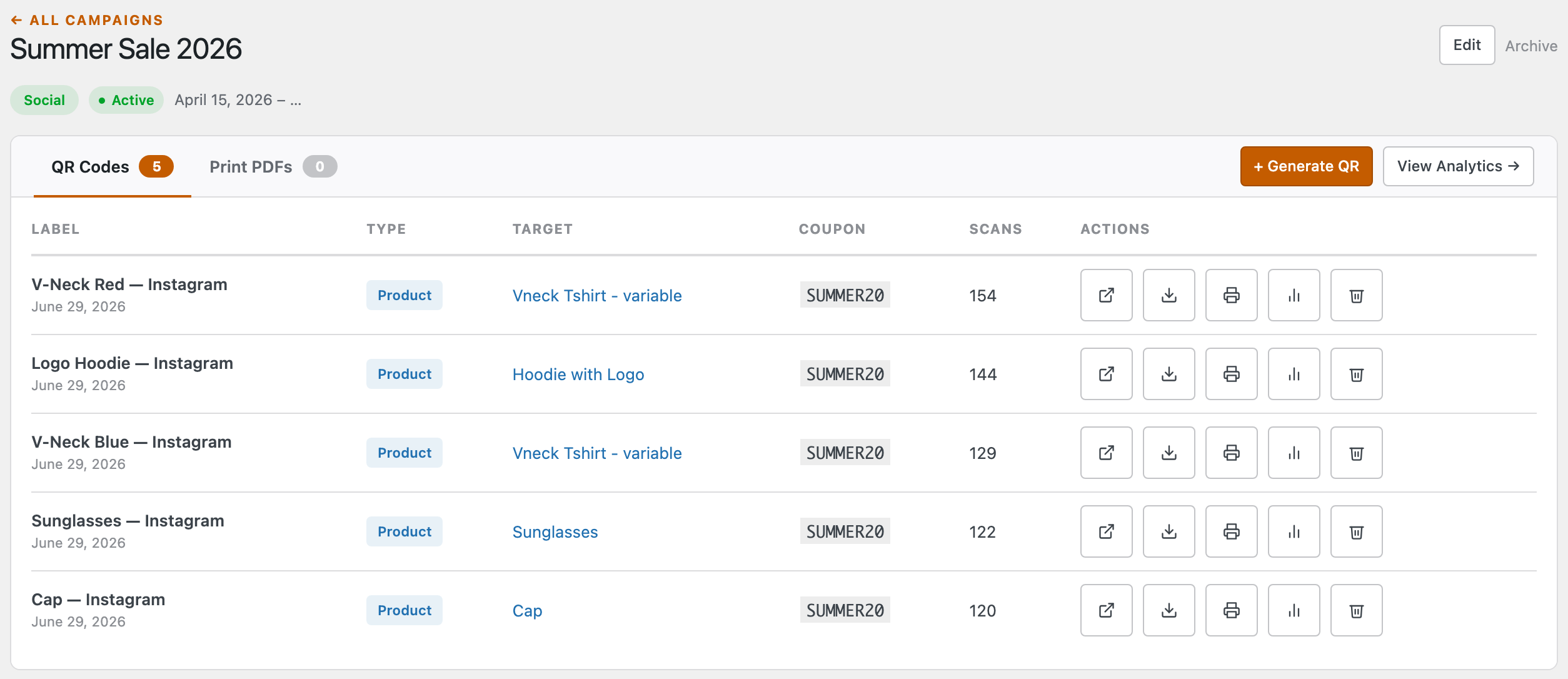
The campaign page lists every code it holds with its target, coupon and scan count, and the same per-code actions you get elsewhere — open, download, print, view scans, delete. From here you can also build Print PDFs for the whole campaign and jump straight to its numbers with View Analytics →.
Channels & winding down
The channel you set isn’t just a label — analytics groups performance by it, so you can compare how your print codes do against social or email. When a promotion is over, Archive the campaign: it stops counting as active but keeps all its codes and history, so the numbers are still there when you want to look back.
Next: Track performance →