
QR Coupon
Settings
QR Coupon keeps its options light. QR Coupon → Settings has just a few tabs: QR Design — your store-wide code look, covered on the Design your codes page — Print Pro for print-sheet defaults, and Cleanup, the housekeeping tab this page is about.
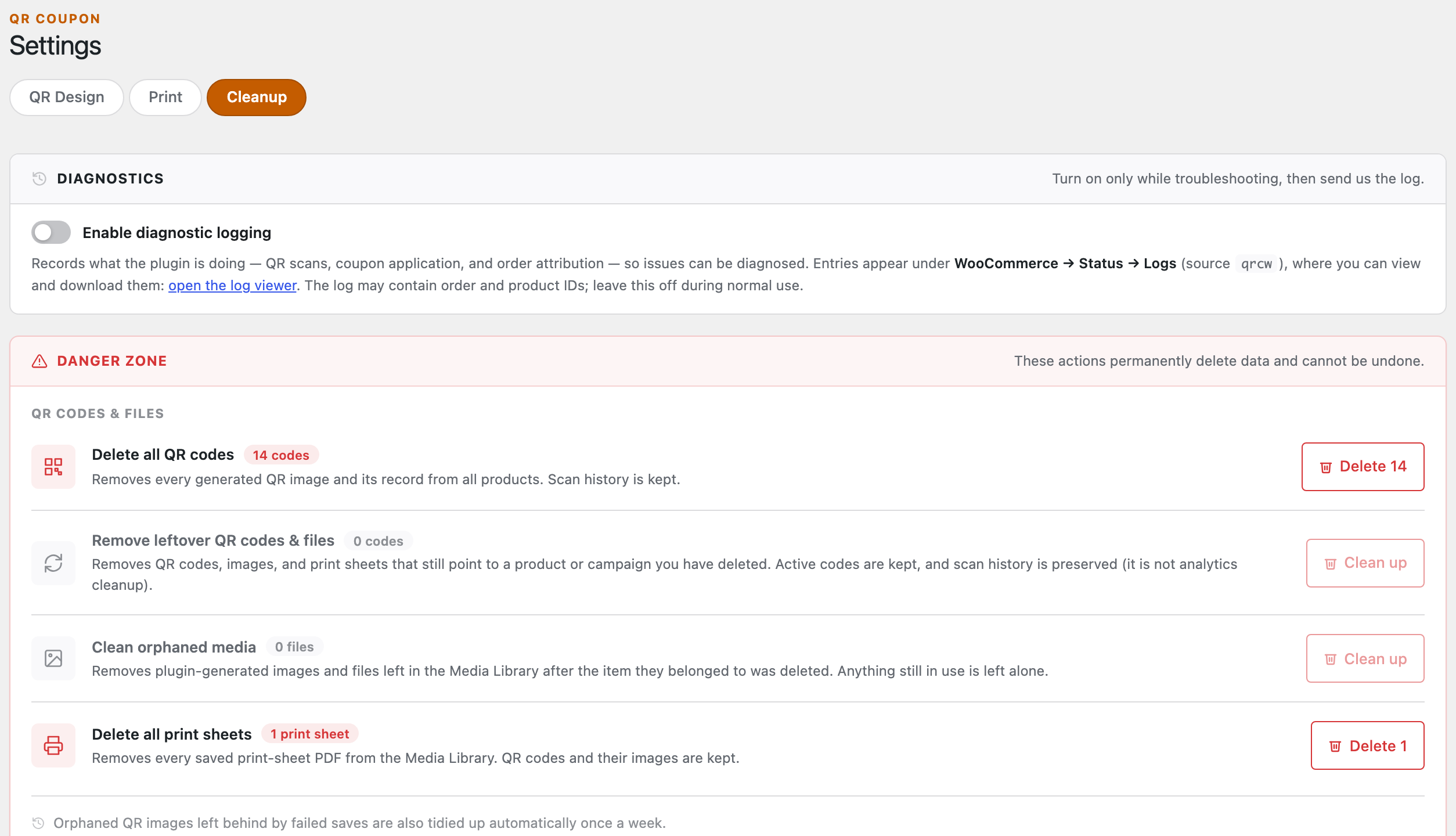
Diagnostics
The Enable diagnostic logging toggle records what the plugin is doing — scans, coupon application, order attribution — into WooCommerce → Status → Logs under the source qrcw, where you can read or download it. It’s the first thing to turn on if something isn’t adding up, and the log is what support will ask for.
Leave it off during normal use: the log can contain order and product IDs, and there’s no reason to keep writing it once things are working. Turn it on only while you’re chasing a problem.
The danger zone
Everything below the red line permanently deletes data and can’t be undone. Each action shows a live count of exactly what it will remove — “Delete 14”, “Clear 1,055” — so nothing is deleted blind. They fall into three groups:
- QR codes & files — delete every code (scan history is kept), remove leftover codes that point to products or campaigns you’ve since deleted, clean plugin images orphaned in the Media Library, or clear saved print sheets.
- Scan & analytics data — clear your whole scan history (resetting every report to zero, while keeping the codes), or surgically erase only the history of items you’ve already deleted.
- Campaigns — delete all campaigns while keeping the product codes and prints that lived inside them.
For the most part you can ignore this tab — QR Coupon tidies orphaned images on its own once a week. Reach for it when you’re cleaning up after a big reshuffle, handing the store over, or you just want the reports to start fresh.
Next: Troubleshooting →