
QR Coupon
Print your codes
A QR code does nothing until it’s somewhere a phone can reach it — a hangtag, a shelf card, a poster. QR Coupon turns any saved code into a print-ready PDF right in your browser, with no design tool in between. Pro
Printing a code
Printing always starts from a saved code — its look is fixed at save time, so the PDF matches exactly what you’ll get. Wherever a saved code is listed — the QR metabox on a product, or inside a campaign — it has a Print button (the printer icon). Click it to open the print window.
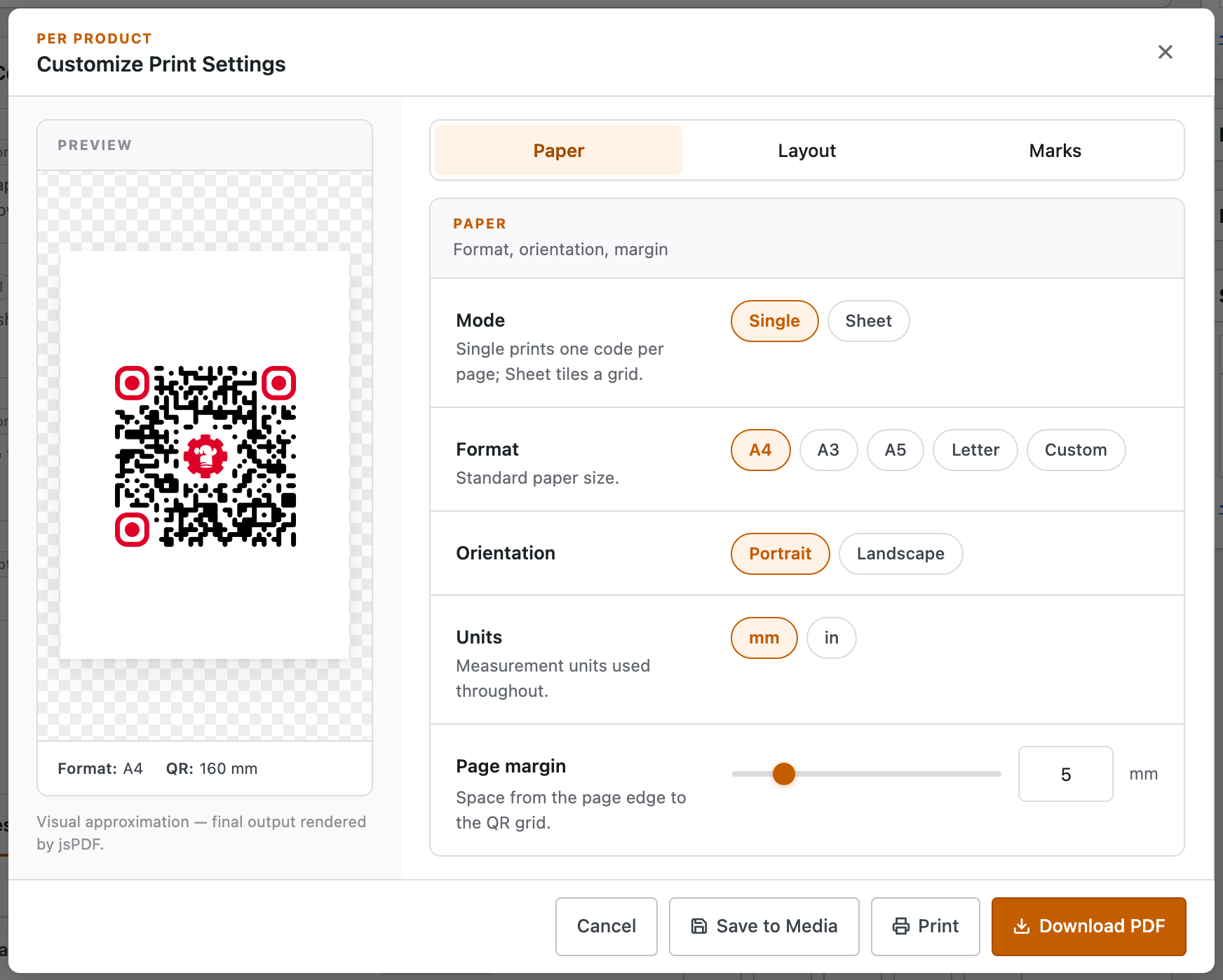
The preview on the left is the page itself — it redraws as you change anything on the right, so you always see what will come out. When it looks right, choose one of the three actions in the footer:
- Download PDF — save the file to send to a printer or a print shop.
- Print — hand it straight to your browser’s print dialog.
- Save to Media — keep the PDF in your WordPress Media Library so you can reprint it later without rebuilding it.
One big code, or a sheet of copies
The Mode switch is the choice that matters most:
- Single — one code on the page, sized and positioned how you like. Right for a poster, a sign, or a single card.
- Sheet — the same code tiled across a grid you set, so one A4 page becomes a sheet of identical cut-out labels. Right for hangtags, shelf cards or table tents you produce in bulk.
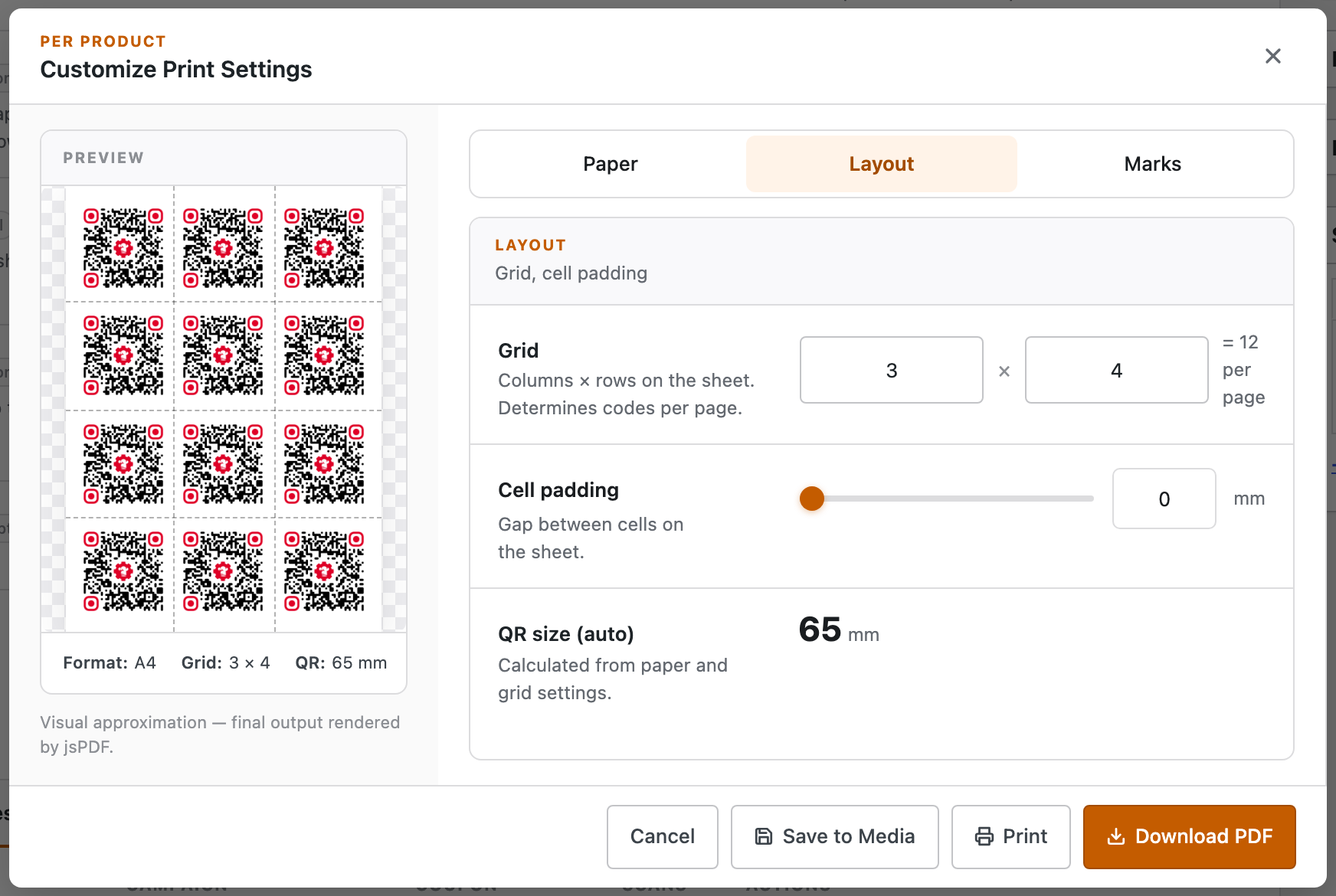
In Sheet mode you set the grid — columns × rows — and it tells you how many fit per page. The QR size is then worked out automatically from the paper and the grid; if it drops below about 25 mm the window warns you, because codes that small don’t always scan reliably.
Paper, grid & cut marks
Across the Paper, Layout and Marks tabs you control everything about the page:
- Paper — format (A4, A3, A5, Letter or a custom size), portrait or landscape, your units (mm or inches), and the page margin.
- Layout — in Sheet mode, the grid and the padding between cells; in Single mode, the code’s size and where it sits on the page.
- Marks — optional cut marks between cells (so you can trim a sheet cleanly), a border around each code, or a border around the whole page.
Set these once as your house style under QR Coupon → Settings → Print, and every print window opens with those defaults already filled in. Each job can still override them — the defaults are just your starting point.
Where saved sheets live
Anything you Save to Media is filed for reuse — under Print Sheets in All QR Codes for store-wide jobs, or in a campaign’s own Print PDFs tab when you printed from inside one. Download or delete them from there whenever you like, and the Cleanup tab can clear old sheets in bulk when they pile up.
Captions print as part of the image, so accented and non-Latin text comes out correctly. The code itself is the one baked into that saved QR — to print a restyled version, re-generate the code first, then print the new one.