
QR Coupon
Design your codes
Out of the box a code is a plain black-and-white grid. A few settings turn it into something that carries your brand — recolour it, round the dots, drop your logo in the middle, wrap it in a frame. Set the look once and every new code inherits it; override a single code whenever you need something different.
Set your store-wide look
Go to QR Coupon → Settings → QR Design. The tab is a live preview on the left and tabbed controls on the right, grouped into Basics, Colors, Shape, Corners, Logo and Frame. Whatever you save here becomes the default for the next code you generate.
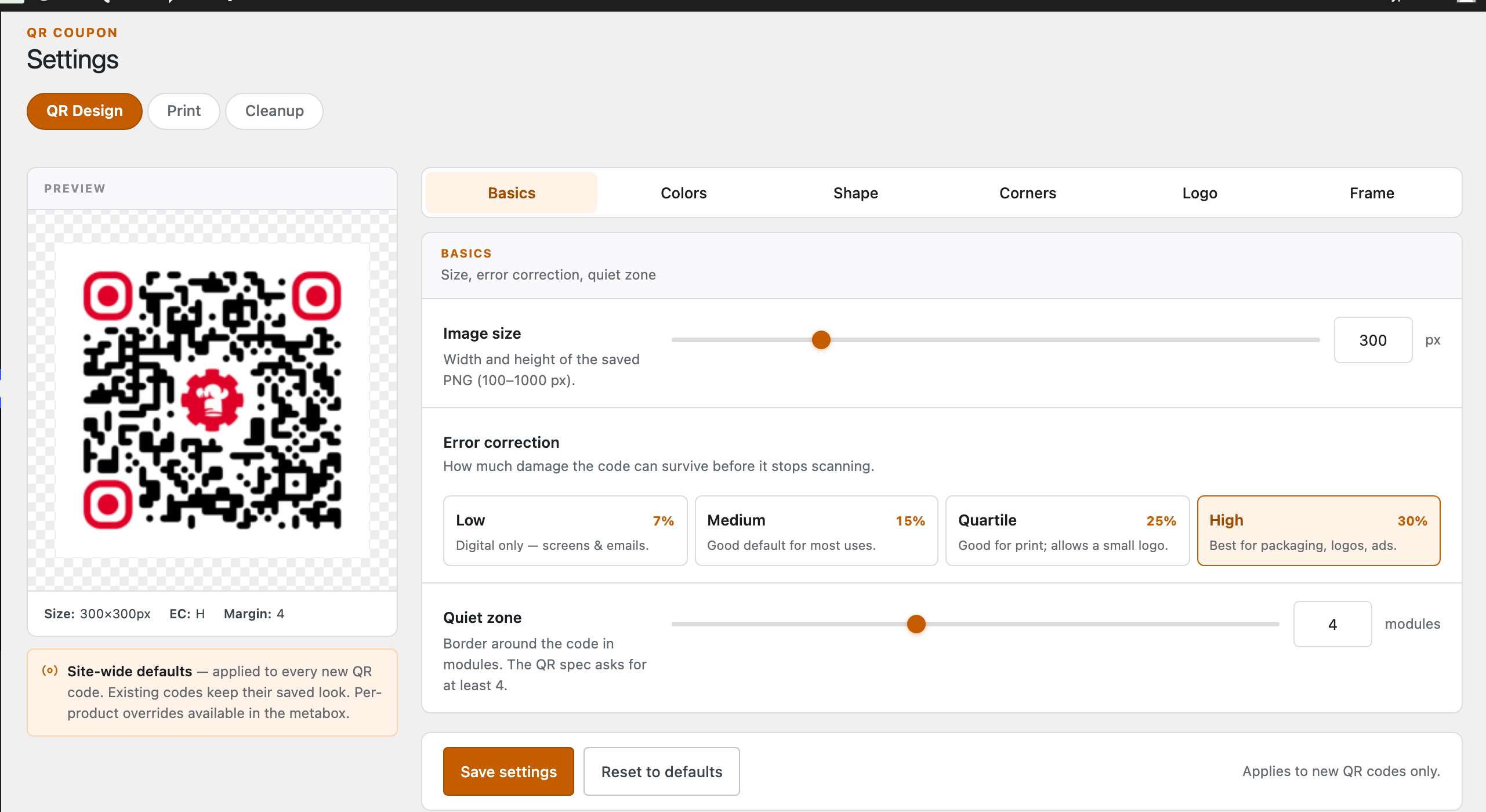
- Basics — image size, error-correction level and quiet zone (the white border).
- Colors — foreground and background colours, plus an optional gradient.
- Shape Pro — the style of the data dots (square, rounded, dots…).
- Corners Pro — the three finder “eyes”: their frame style, centre style and colours.
- Logo Pro — drop a logo into the middle of the code and set its size.
- Frame Pro — a border around the code with optional call-to-action text.
Free vs Pro. Basics and Colors ship in the free plugin — so you can size, recolour and gradient your codes at no cost. Shape, Corners, Logo and Frame are Pro.
Two things worth knowing: the defaults here apply to new codes only — saving them never touches codes you have already generated. And if you add a logo, keep Error correction on High so the code still scans with part of it covered.
Override a single code Pro
Need one code to look different — a seasonal colour, a campaign logo? On the product screen, generate the code, then click Design next to the preview. The Customise QR Design dialog opens with the same six tabs, but the changes apply to this code only. The campaign code generator opens the very same dialog.
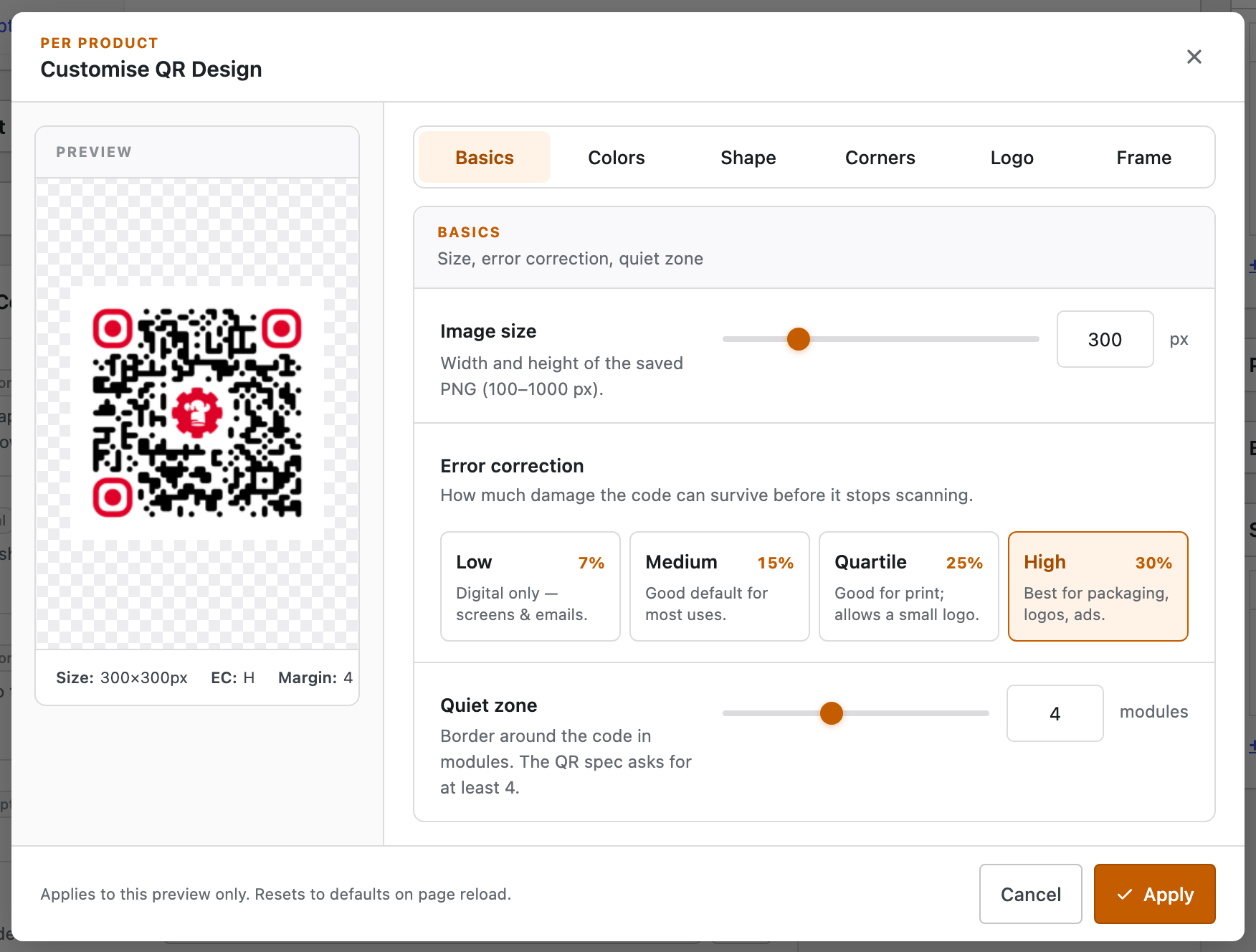
The dialog says it best: “Applies to this preview only.” Your tweaks live in the preview until you Save to Product (or save the campaign code) — at which point they’re committed to that one code.
A saved design is final
QR Coupon renders the artwork in your browser and bakes it into the PNG the moment you save. That keeps the file self-contained — but it also means a saved code’s design is fixed. There is no “edit design” on an existing code; the only edit action in the All QR Codes list is Edit product, which opens the product, not the design dialog.
To restyle a code, delete it and generate a fresh one with the new look. So it pays to settle on your design before you save — set sensible store-wide defaults first, and only reach for a per-code override when a code genuinely needs to stand apart.
Next: Manage your codes →