
QR Coupon
Manage your codes
Every code you save — whether from a product screen or a campaign — lands in one place: QR Coupon → All QR Codes. It’s the library for your whole store, so you can find, download, print or retire any code without digging through products.
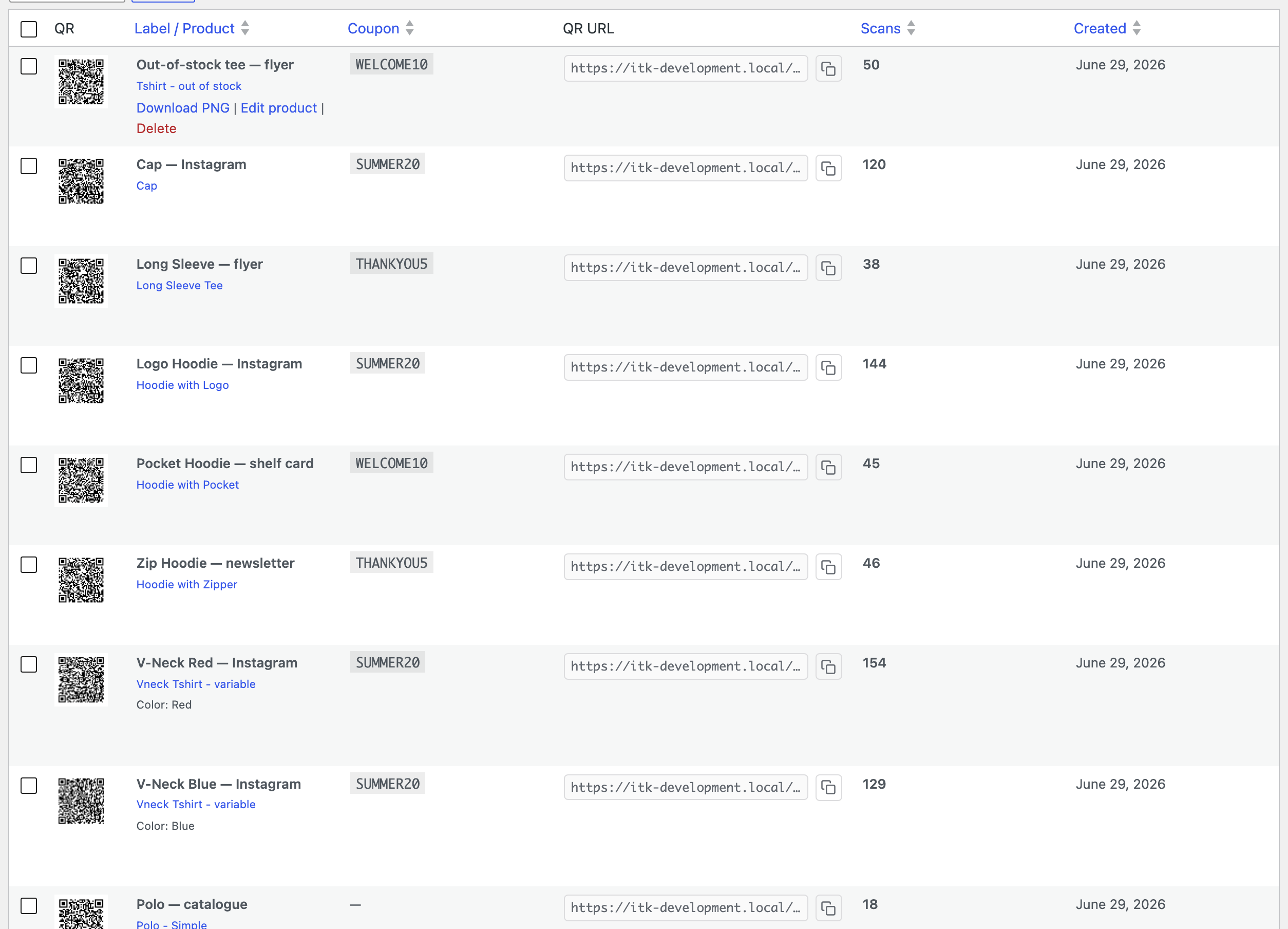
What’s in the list
- QR — a thumbnail of the saved code.
- Label / Product — your internal label, the product it points to, and the variation (e.g. Color: Red) where relevant.
- Coupon — the coupon baked into the code, if any.
- QR URL — the scan link, with a one-click copy button so you can test it or drop it elsewhere.
- Scans — a running count of how many times the code has been opened.
- Created — when the code was saved.
Click Label / Product, Coupon, Scans or Created to sort by that column, and use Search QR Codes to filter by label once you have a few.
Acting on a code
Hover a row to reveal its actions:
- Download PNG — grab the image file to drop into a flyer, a print job or a social post.
- Edit product — jump to the product the code points to (this is the only edit action; a saved code’s artwork can’t be changed — see Design your codes).
- Delete — remove the code for good. To clear several at once, tick their boxes and choose Delete from Bulk actions.
Printing your codes Pro
Need a code on paper? Any saved code can be turned into a print-ready PDF — one big code per page, or a whole sheet of cut-out copies for shelf cards and hangtags. It’s a Pro feature with its own page: Print your codes.
Where to put your codes
A QR code only earns its keep where a phone can reach it. Common spots:
- Packaging & hangtags — turn an unboxing into a repeat purchase.
- Flyers, posters & shelf cards — bridge the gap from print to a pre-filled cart.
- Shop window or counter — let passers-by buy after hours.
- Receipts & inserts — a thank-you discount on the next order.
- Social posts & stories — though on a phone the scan link itself often works better than a code.
Before you commit a code to print, test it: copy its QR URL and open it in a browser, or scan the PNG from your screen. You should land in the cart with the right product — and coupon — applied.
Next: Print your codes →