
Pack Orders
In the WooCommerce admin
You don’t have to live on the Packing screen. Pack Orders also shows up where you already work — on the WooCommerce Orders list and inside each order — so packing progress is visible without opening the dedicated screen at all. None of it touches the WooCommerce order status; it only reads and displays the packing state.
The Packing column on the Orders screen
On the WooCommerce Orders screen, Pack Orders adds a Packing column right after the order status. Each cell is the same colour-coded badge you see on the Packing list — and it’s a link: click it to jump straight to that order’s checklist (it opens in a new tab, so you keep your place in the list).
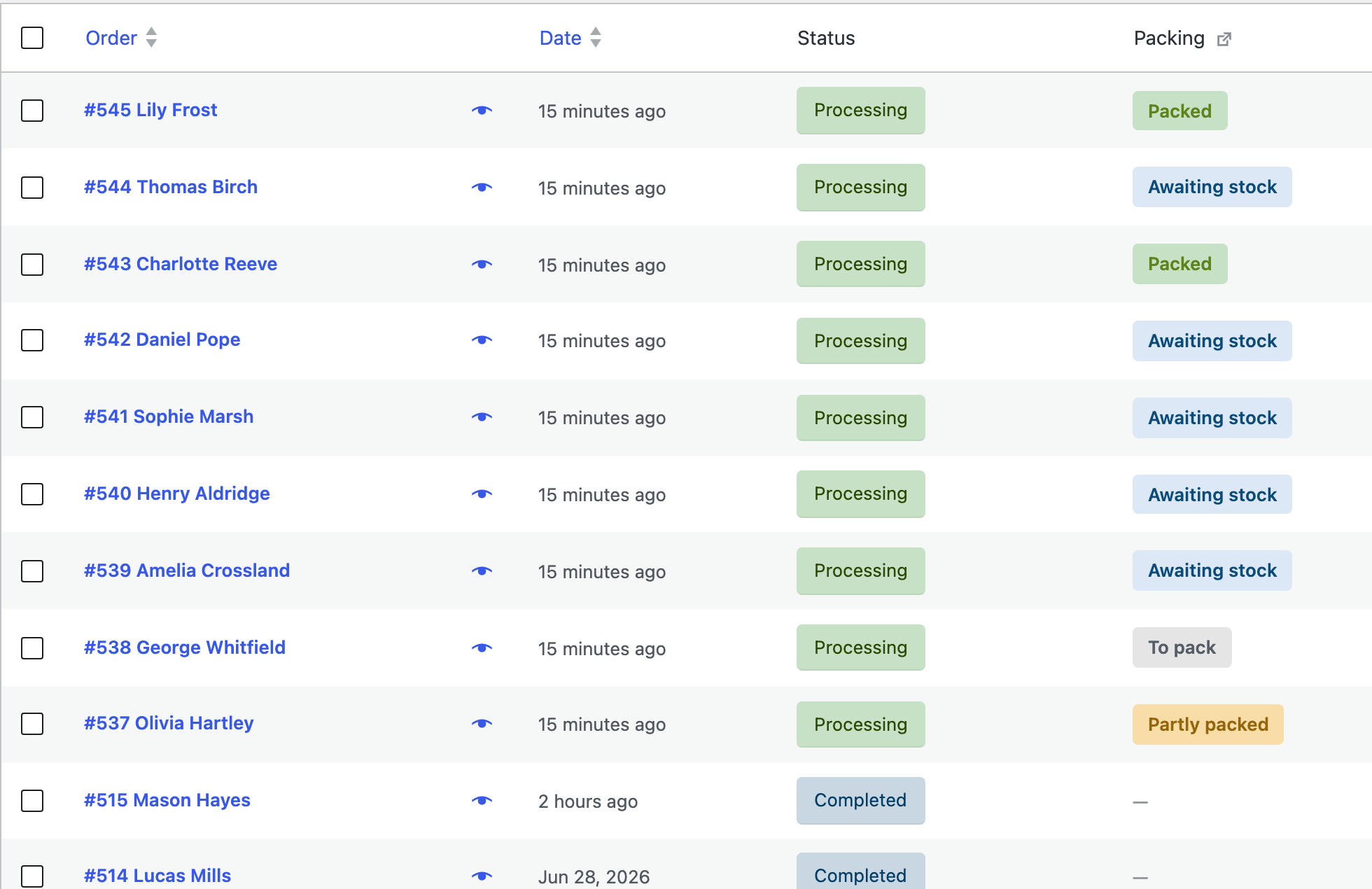
Only orders in a packable status get a badge — everything else shows a dash, so the column stays quiet until an order is actually ready to pack.
The Packing panel on an order
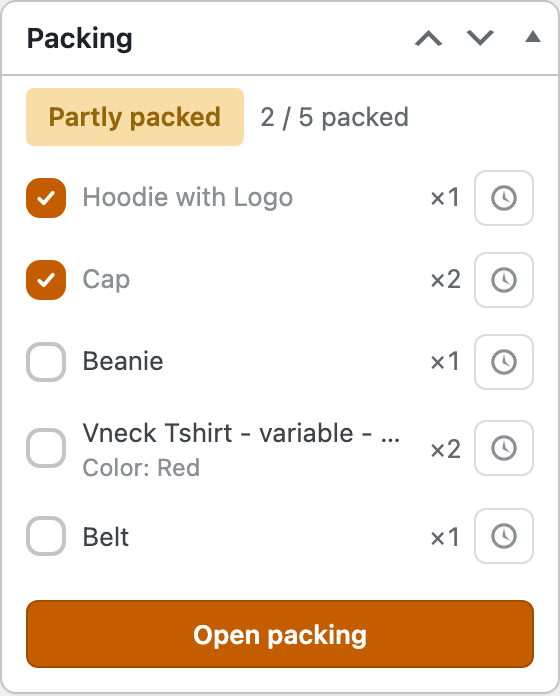
Open a single order and you’ll find a Packing panel in the sidebar. It’s a compact version of the checklist for a quick glance or a quick tick:
- The status badge and an x of y packed count at the top.
- The item list with checkboxes and the awaiting clock — tick or flag an item right here.
- An Open packing button that takes you to the full screen when you’re ready to box it up.
If the order isn’t in a packable status yet, the panel simply says packing opens once it’s processing — nothing to configure.
Want different statuses to count as “ready to pack”? Next: Settings →