
Pack Orders
Pack an order
Packing happens on one screen, built to use one-handed on a phone at the shelf. You’ll find it under Packing in the WordPress admin menu — open it, pick an order, and tick items into the box. Every change saves the moment you make it and shows up for everyone else on the team straight away.
Find an order to pack
The Packing list shows every order that’s ready to pack, newest or oldest first. The tabs across the top split them by packing status — with a live count on each — so you can jump straight to what needs attention:
- To pack — not started.
- Partly packed — in progress, with an x of y count on the badge.
- Awaiting stock — blocked on a missing item.
- Packed — done, ready to ship.
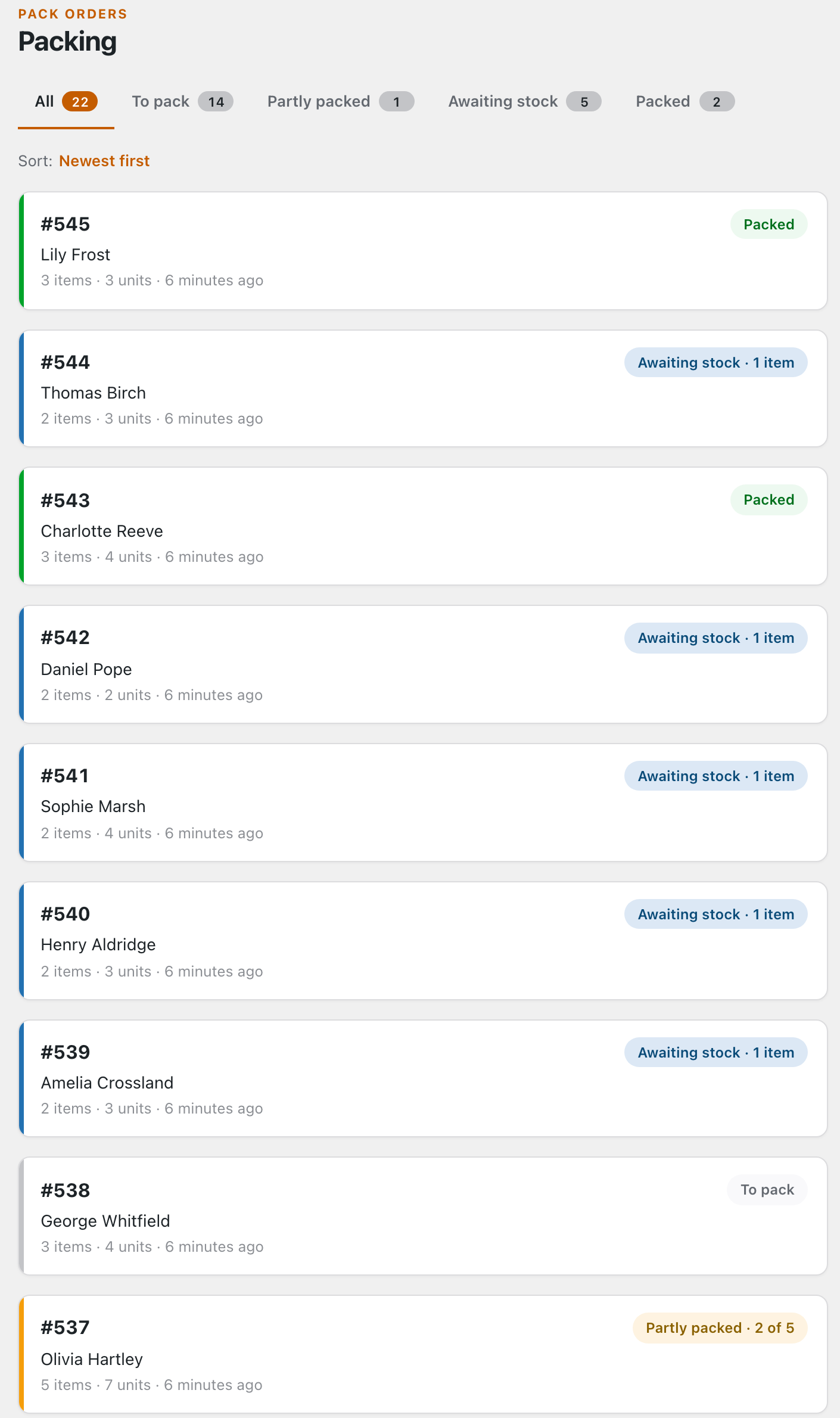
Tap any order to open its checklist. The Sort toggle flips between oldest- and newest-first — oldest-first is usually what you want, so the orders waiting longest get packed first.
Work down the checklist
Each order opens as a clean list of the items to ship. Every row gives you everything you need to grab the right thing off the shelf — the product photo, its name and variation, the SKU, the GTIN barcode number and the quantity — with a big checkbox to tick it off:
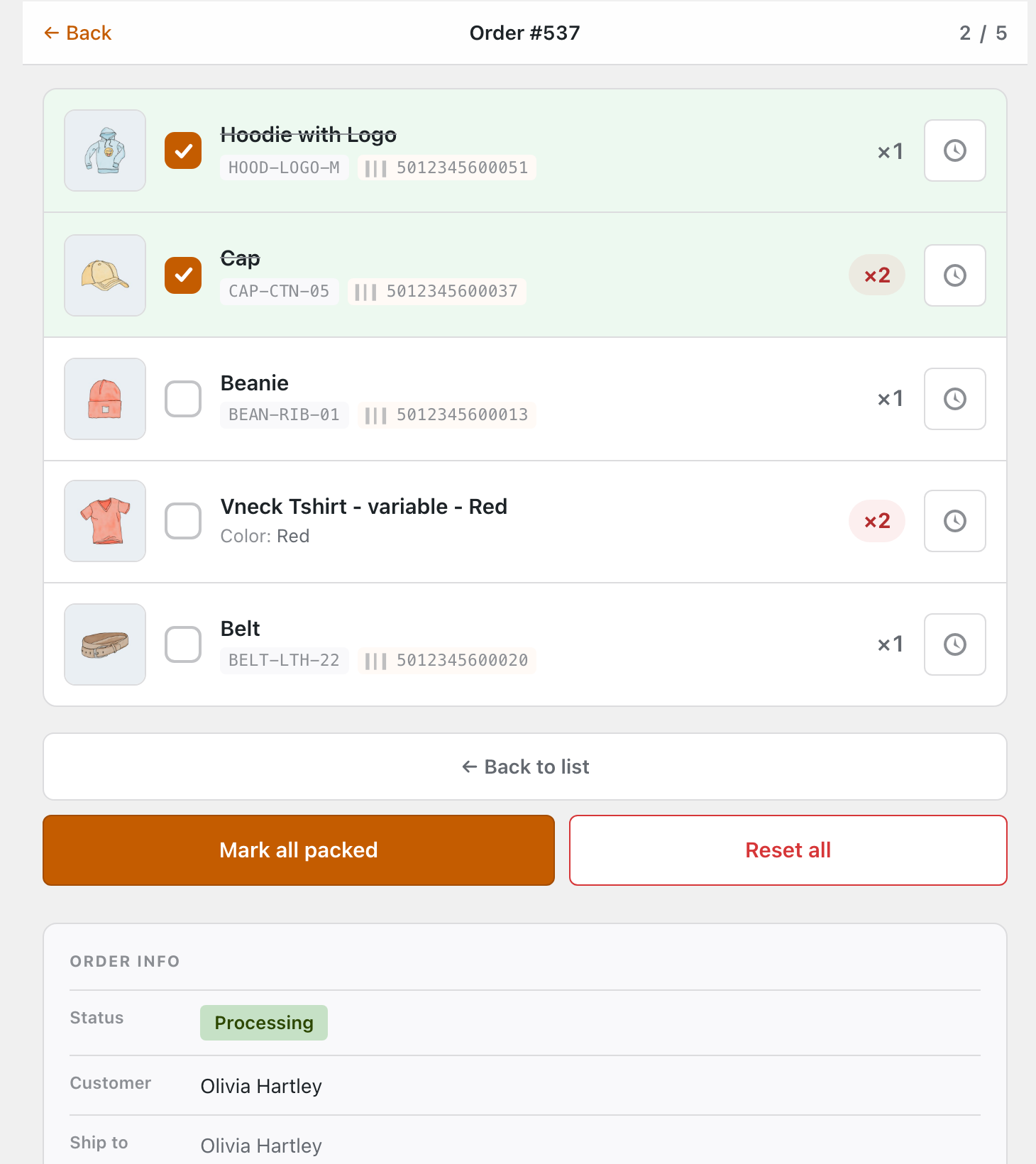
- Tick an item and it strikes through and turns green; the x of y counter in the top bar climbs.
- Variations show their attributes (“Color: Red”) so you grab the right one, and the quantity badge tells you how many to pack.
- Tap a product photo to enlarge it — handy when two variants look alike.
- The Order info block at the bottom shows the WooCommerce status, the customer and where it’s shipping — without leaving the screen.
- Turn on Keep screen awake and the screen stays lit while you work down the list (on iPhone, from your first tap).
Pack it all, or start over
Two buttons sit under the list. Mark all packed ticks every item at once — perfect for a small order you’ve already boxed. Reset all clears every tick (and any awaiting flag) so you can start the order again. Both take effect immediately and update the order’s status everywhere it’s shown.
Short on something? Next: Handle stockouts → — flag a missing item so the order can’t ship short.