
Pack Orders
Suppliers
Pro is the paid add-on for stores that re-order stock from suppliers. It starts here: a supplier directory and a way to tell Pack Orders who supplies which product. Once that’s in place, every item you flag Awaiting stock can be grouped by supplier and turned into a re-order — which is the next page.
Your supplier directory
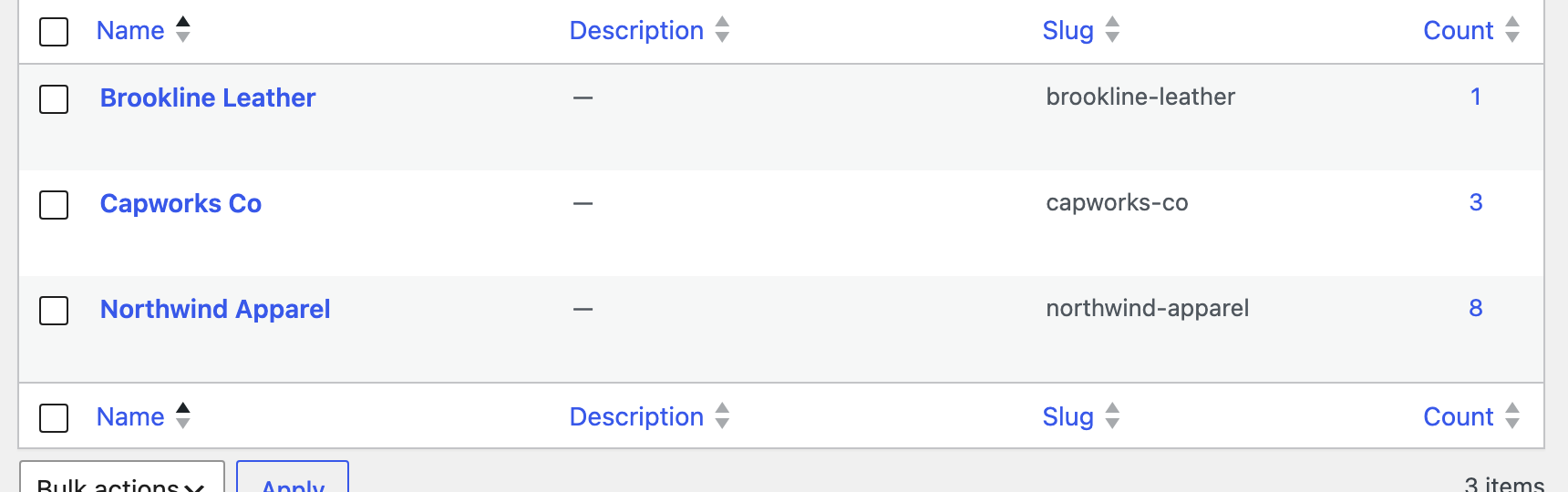
Suppliers live under Products → Suppliers. It’s a simple directory — add one row per supplier you buy from. The Count column shows how many products you’ve assigned to each, so you can see your catalogue’s split at a glance.
Contact details on each supplier
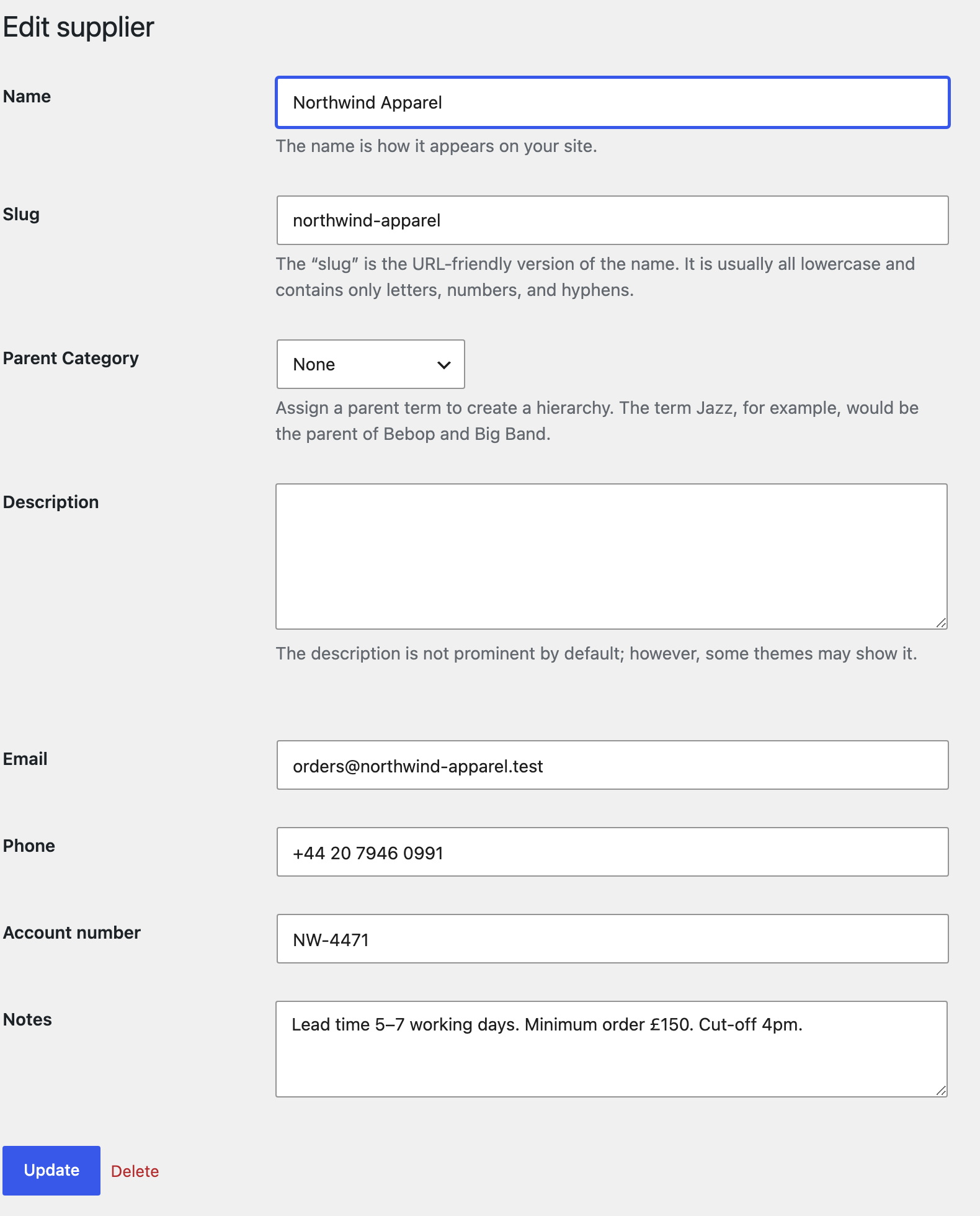
Each supplier carries the details you need to actually place an order — added right on the supplier’s add/edit screen, below the usual name and slug:
- Email — used for the one-click “email this order” button on the re-order list.
- Phone — for when it’s quicker to call.
- Account number — your reference with that supplier.
- Notes — lead times, minimum order, cut-off — whatever you need to remember before ordering.
These show up next to the supplier’s group on the re-order list, so the people placing orders have everything in front of them.
Assign products to a supplier
Telling Pack Orders who supplies a product works exactly like product categories. On the Products list you get a new Supplier column and an All suppliers filter; set a product’s supplier from its edit screen, or pick several and use Quick Edit / Bulk edit to assign them in one go.
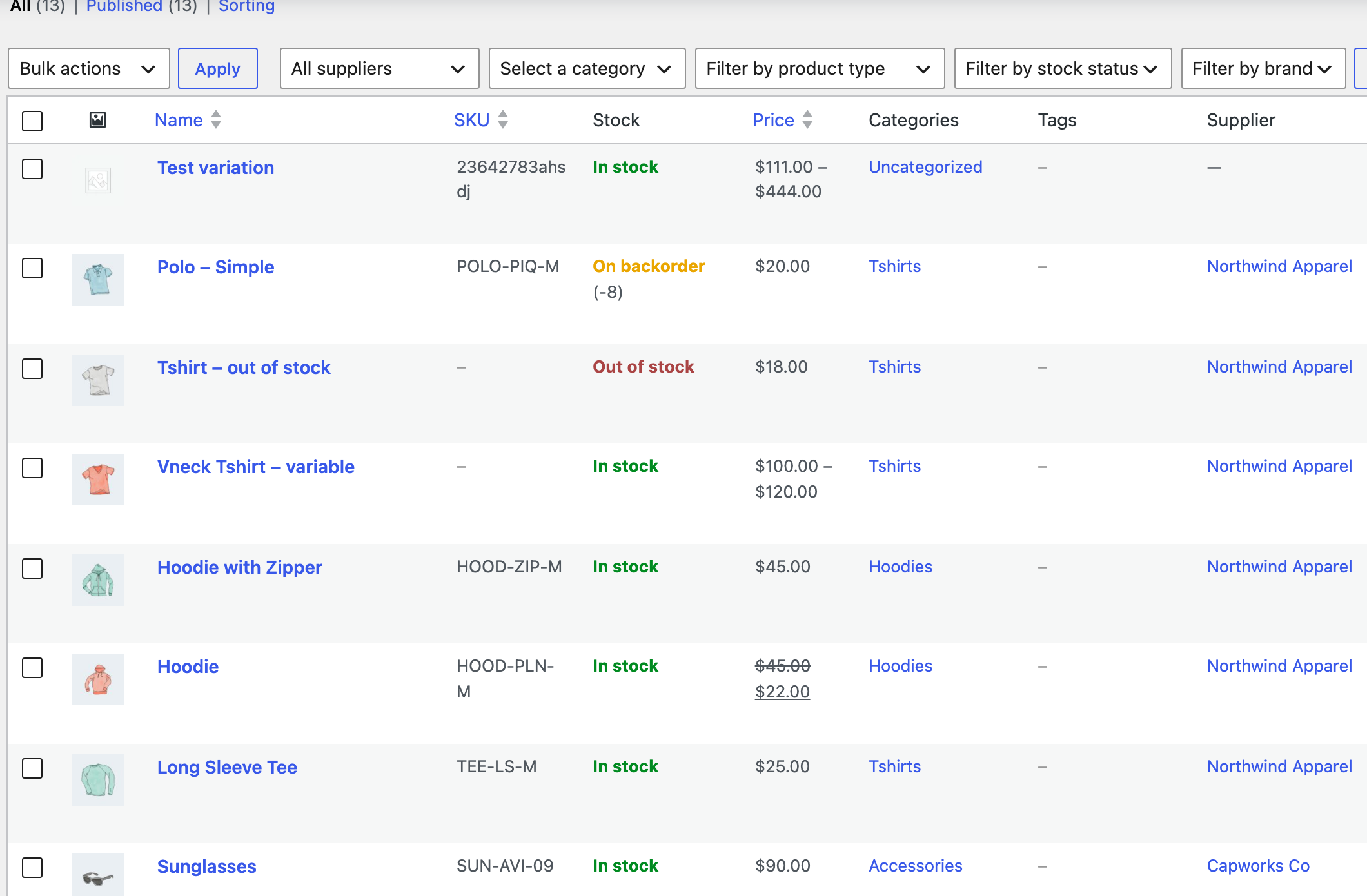
A product has one supplier. Anything you haven’t assigned still works — its awaiting items just gather under Unassigned on the re-order list, so nothing is ever lost.
Suppliers set up? Now put them to work: Re-order from suppliers →